
 Today's Hours:
 Ask Us
 My Library Account
Student Multimedia Studio
Student Multimedia Studio
Student Multimedia Studio
About the Studio
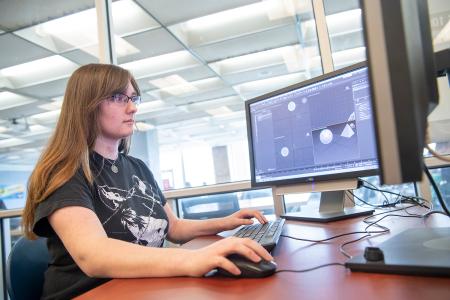
Located on the 1st floor of the Kent State University Library, the Student Multimedia Studio (SMS) provides currently enrolled KSU students with a wide range of multimedia equipment, software, and support. At the Student Multimedia Studio, students can create PowerPoint, web, video & audio presentations and e-Portfolios, as well as scan and edit documents and photographs, create graphics and animation and receive one-on-one instructional support from peer mentors or professional staff. The SMS is one of many nodes in the Design Innovation ecosystem at Kent State.
The resources in the SMS are available first come, first served except for a select few that are available via reservation - the video editing suites, video digitization, audio recording booth and video conferencing.
Click the links below for more information about each specialty station in the SMS.
- 3D Modeling & Animation Station
- 3D Printing Service
- ASL Recording Station
- Audio Digitizing
- Audio Recording Booth
- Button Maker Station
- Cricut Station
- Image Digitizing
- Large Document / Object Digitizing
- Podcasting Studio
- Video Editing (Mac)
- Video Digitizing & Editing (Windows)
Related Links
- Camcorder checkout (managed by the Circulation Desk)
- Software on library computers
- Residence Hall computer labs
- Classroom instructional equipment (managed by Classroom Technology and University Event Support [CTUES])
- SparkLab (formerly Spark Innovation Studio)
- Design Innovation at Kent State ("Shared by all, owned by none")
- Adobe Creative Campus (the Adobe Creative Commons is located in the SMS)
- CAED Digital Lab (large format scanning and plotters)
- VCD Creative Lab (open to all students with resources such as large-format printing)
Contact
Phone: 330-672-0221
Email: kentstatesms [at] gmail.com
Manager: Hilary Kennedy
Hours
Visit the Hours & Contact Info page for more details.
Jobs at the SMS
The Student Multimedia Studio employs a team of Student Consultants to assist in the operations of the makerspace. To apply for a job at the SMS, visit the Jobs for Students page on the University Libraries website.
The SMS is currently accepting applications for fall semester. Apply now on Handshake.