
 Today's Hours:
 Ask Us
 My Library Account
Statistical Consulting
Statistical Consulting
Statistical Consulting
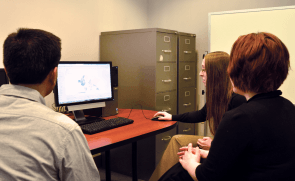
We help faculty, staff, and student researchers learn to use statistical and qualitative data analysis software through one-on-one consulting sessions, workshops, and online tutorials. The service is free, and members from any discipline and any campus are welcome!
Consulting Appointment Availability
Consulting appointments are available in-person and remotely! You can sign up for an appointment using the Scheduler or by emailing statconsulting [at] kent.edu.
About Us
We help clients at any stage of the research process learn how to use statistical and qualitative data analysis software.
- About Consulting Services - Meet with a consultant in person or virtually
- About Training and Instruction - Attend a workshop or request instruction
- How to Obtain Research Software - Where to obtain free or discounted software
We currently support the statistical software packages SAS, SPSS Statistics and SPSS Amos, Stata, R, JMP, and GPower; the qualitative data analysis package NVivo; and the online survey platforms Qualtrics and Microsoft Forms.
Tutorials
Related Links
- Install software or renew licenses:
- Request software licenses for personal computers (all KSU students, faculty, staff)
- Tech Help Service Desks
- Support/Helpdesk Tickets
- GIS Data and Software (including ArcGIS): Map Library
- Software available on public computers in the library: Workstations
- Help finding articles or data sources: Meet with a Librarian
- Tutoring in statistics: University Tutoring
AVAILABILITY
By appointment only
Appointments available Monday through Friday, 9am-5pm
Location
Room 812, University Library
Contact
Phone: 330-672-8548
Email: statconsulting [at] kent.edu
Head: Kristin Yeager