
 Today's Hours:
 Ask Us
 My Library Account
Instruction
Instruction
Instruction
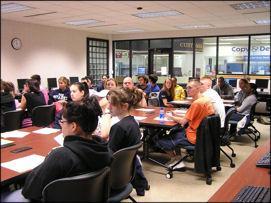
University Libraries is committed to providing critical thinking and information literacy instruction to all Kent State University students, in all disciplines, and at all levels.
We endeavor to help students:
- Create effective and efficient strategies for locating information.
- Discern quality and authority in the information sources they choose.
- Handle information honestly, ethically, and legally.
- Envision themselves not just as consumers, but as creators of information.
- Embrace the iterative process of research by formulating, asking, answering, and reformulating research questions.
Research Librarians are available to deliver instruction tailored to your course:
- In-person instruction in your classroom or one of the library’s instructional spaces.
- Flipped classroom instruction.
- Embed your Subject Librarian in your online, hybrid, or in-person courses.
- Collaborate to design assignments that meet course-related Information Literacy outcomes.
- Provide assistance in planning Faculty-delivered in-class activities.
- Provide assistance in identifying supplemental materials (ebooks, videos, etc.) for your course.
- Instructional videos.
- Asynchronous online instruction.
- Synchronous online instruction.
- Web-based LibGuides.
Reach out to your Subject Librarian to discuss your customized instructional solutions. Regional campus faculty, please contact your campus librarian(s).
Specialized Instruction
In addition to the options above, University Libraries offers specialized instructional outreach in the following areas:
- Flashes 101- Library Engagement
- Library Support for College Writing
- High School Outreach
- Plagiarism School and Academic Integrity
Instruction Resources
Contact Instructional Services
Beate Gersch
Executive Director, Student and Research Success
bgersch [at] kent.edu