
 Today's Hours:
 Ask Us
 My Library Account
Course Reserves
Course Reserves
Course Reserves
Instructors -- if you need materials for Course Reserves including books, articles, or movies, please submit the request here.
Course Reserves provides Kent State faculty, students, and staff access to required and supplemental course readings and other materials while complying with copyright laws.
University Libraries can help instructors provide access to electronic and print course materials for Kent State students. Please submit any requests for course resources including books, videos, articles, etc., here. Please include the instructor’s name, class number, and complete bibliographic information so we can find the materials as quickly as possible.
If an instructor is aware of a library resource that students depend on for their coursework, we will work to provide online access to these materials whenever possible. Please submit the request here, and we will prioritize those materials that are specifically requested.
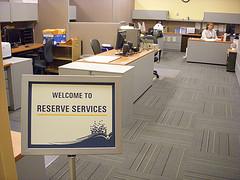
Contact Reserve Services
Have general questions? Students or instructors can email any time for assistance.
reserves [at] kent.libanswers.com (subject: Course%20Reserves%20Assistance)